 by clicking the link.
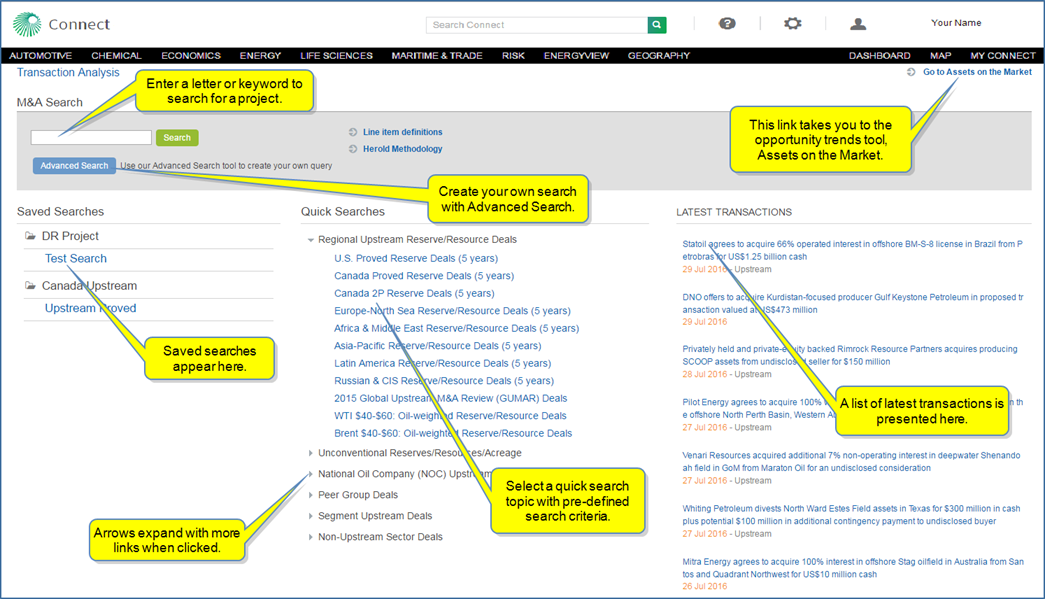
The Transaction Analysis tool provides access to individual deal analysis on more than 30,000 energy industry transactions over the past 20 years benchmarked against commodity prices and featuring key M&A marketplace valuations for all global regions. Transaction out sheets include details about buyers, sellers, transaction value, deal location, level, industry, and segment. You can open quick searches provided by IHS Markit, do an advanced search, and save searches for future reference.
Assets on the Market is connected to the Transaction Analysis tool to give you the flexibility of moving between the tools and comparing completed deals and transactions with opportunities and potential deals on the market. From the Transaction Analysis home page you can by clicking the link.
Note: When you save a search, it appears on the Transaction Analysis page and in My Connect where you can set-up a daily or weekly alert regarding any activity on your saved search criteria.


When you click Transaction Analysis, the page opens with a search field where you can enter a letter or a keyword to find a project, an Advanced Search tool to create your own query, Saved Searches, and Quick Searches. You'll also find a Go to Assets on the Market link that allows you to toggle between the Transaction Analysis tool (deals that have been made) and the Assets on the Market tool (asset opportunities).
The sections below provide information about the following:
Quick Search links display details of transactions (deals) related to the title of the search. The titles of the searches are organized into categories—for example,
IHS Markit Connect analysts have chosen the search criteria and organized the results in columns for easy viewing and access. The overview lists the announced transactions in descending chronological order with some detail about the buyers, sellers, value, level, industry, and segment. When you view search results, you can change the search criteria by clicking Refine Criteria in the breadcrumb trail.

Below the table on the results page, a chart is displayed that includes the selected (check marked) transactions.

You can change the criteria you view on the chart by selecting from the drop-down menu.

And you can change the time period.

The article view provides details about the transaction and includes information about the Transaction Parties—Buyer(s) and Seller(s)—with links to Company Profile where you'll find more detailed information about the companies involved. Content areas include Key Attributes, Transaction Summary, Reserves and Production, Valuation, and Markets (Stock and Commodity). Modules for Sources, Related Analyst Commentaries, Related Documents, and Related Transaction Analysis are available in the right panel.
When you want to view more details for a specific transaction, click one of the transaction dates in blue on the results page. A scrollable article page is displayed. Navigate through the article using the links in the Table of Contents. You can also add the article to My Connect, share, export, or print the article using the article icons.

Article icons allow you to save, share, export, or print the entire article.

|
Add the article to a folder on My Connect. |

|
Share the article with another person through email. |

|
Export the article to PDF format. The PDF version will appear in the lower left corner of your screen. |

|
Print the article. |
|
|
Turn on Information icons throughout the article. Then click the icons to display line item definitions for a term, a link to more details for the term, and the Line Item Definitions linked tree. |

|
Turn off Information icons throughout the article. |
When you scroll to the bottom of the page, a linked name is displayed. When you click the name, the contact information for the analyst of the article becomes available.
To search for a project using a keyword or the name of the project, enter a keyword into the Search field. Connect suggests possible matches.

Select a name from the suggested list or type the project name. A new link is displayed taking you to the outsheet for the project.

Click Search, and the results page displays results related to your keyword.

To launch a search with your own search criteria, click the Advanced Search button.
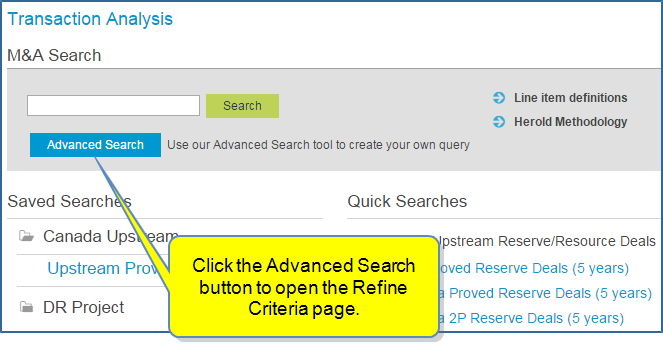
The Refine Criteria page shows you the Selected Criteria and the following tabs:
Use the options on these pages to include the criteria you want to see in search results. You can include as many or as few criteria as you prefer. You can clear all selections at any time.

In the following example, we've reset the criteria.

The search results show the new Selected Criteria.
The chart view displays the Total Transaction Value by Global Region.
You may want to export results from a Quick Search or an Advanced Search. Select Export in the upper right corner.

The Select columns to Export dialog box opens. This feature allows you to create a custom excel export.
Here you can customize the columns for your export by selecting a Predefined Group (All is an option), and moving Available attributes to the Selected box by clicking the right arrow ( ) or move all icons (
 ). Arrange attributes (columns) into a custom export order by dragging and dropping into position. Then click Export.

Note: To save your custom order of selected attributes, create a My group by entering a name into the My Group Name... input box and clicking Save.
Your saved attribute group will appear under My in the Groups column until you delete it. To delete, click the  to the left of the My group name.
You may want to save individual search results. Select the Save to My Connect icon ( ) appearing to the right of the result on hover.

The Save to My Connect box opens. Save the results to Read Later, any existing project folders, or create a new project. We'll save it to "Oil and Gas Projects."

The saved project is stored as a document on My Connect in the Oil and Gas Projects folder. While hovering the project, you can share, copy it to another folder, or remove it from My Connect and the Transaction Analysis home page.
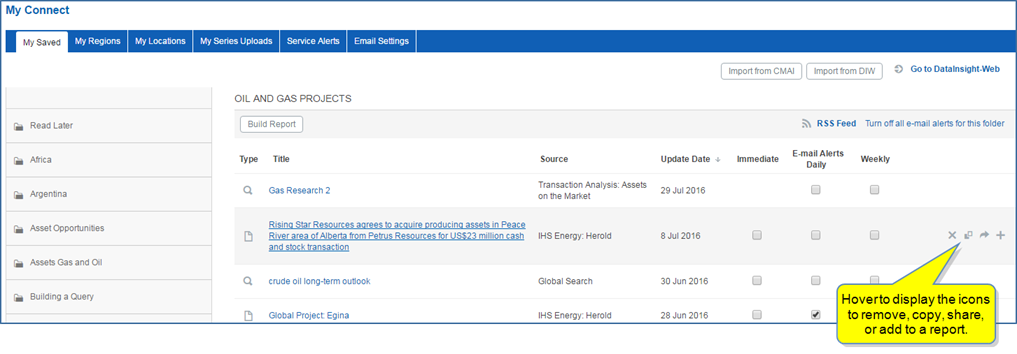
If you select the transaction while in My Connect, the article, detailed view is displayed.
You may want to save a Quick Search or an Advanced Search. Select Save search in the upper right corner.

The save dialog box opens. We'll name the search "Upstream Proved," and create a new folder, "Canada Upstream." Because we created a new folder, we'll select Create. (To stay with the Read Later or DR Project folder, select Save.)
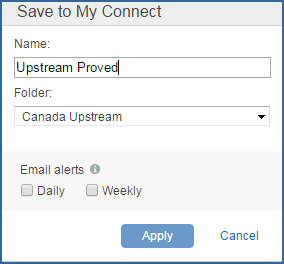
The new folder "Canada Upstream" containing the "Upstream Proved" search now appears under Saved Searches on the Transaction Analysis page. (Click the folder to view the search.)

It also appears on My Connect. with the Transaction Analysis Query Type icon.
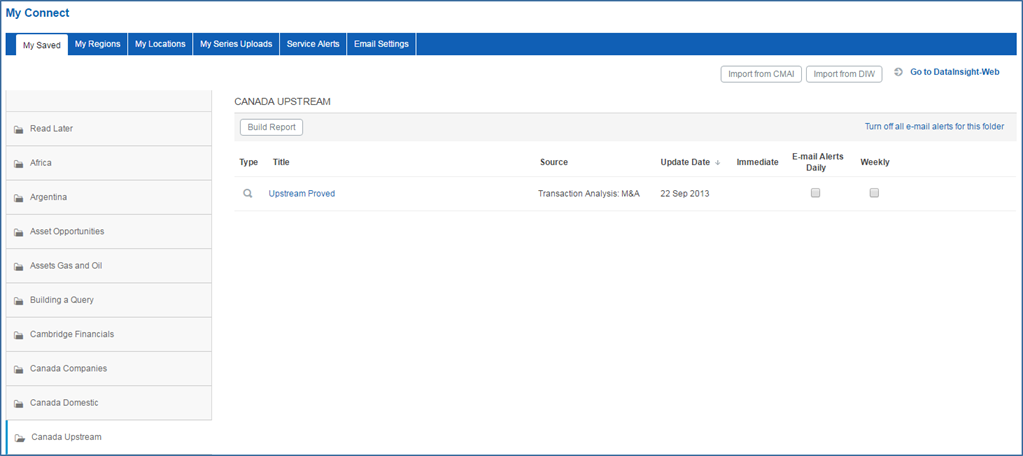
If you select the search while in My Connect, the search opens in Transaction Analysis on the Results page. If you want to revise your search criteria, just select Refine Criteria in the breadcrumbs trail. You can update the search when you refine criteria, or you can save the modifications as a new search.

There are two places where you can delete a Transaction Analysis search—on the Transaction Analysis primary page and on My Connect. Deleting a search from either of these locations removes the search from Transactional Analysis, My Connect, and Email Settings.
To delete a saved search from the Transaction Analysis page, highlight the search and click the X.

To delete a search from My Connect, highlight the search and click the X.
Note: If you created a new folder for the search, and you want to delete it, highlight the folder in the left pane of My Connect, and then click the X.
